
Technical Bulletin: Resolving Windows-Induced Stuttering in SMITE 2
Subject: Optimization of Windows Security Settings to prevent external frame-pacing interference.
Executive Summary
Our technical team has investigated reports regarding persistent micro-stutters and frame drops. Our analysis indicates that these performance interruptions are frequently not intrinsic to SMITE 2, but are instead caused by a native Windows security feature imposing unnecessary processing overhead on the game client.
The Root Cause: Windows Control Flow Guard
The source of this interference is a standard component of Windows Defender Exploit Protection called Control Flow Guard (CFG).
While CFG is an important security protocol for general applications, it functions by strictly monitoring and validating code execution in real-time. In high-performance gaming environments, this Windows-enforced monitoring can introduce latency spikes as the operating system interrupts the game to perform security checks.
This is a known Windows ecosystem behavior that affects many demanding DirectX 12 titles (such as Borderlands 3 and Warhammer 40k: Darktide), causing stuttering regardless of how well-optimized the game itself is.
The Solution
To prevent Windows from throttling your performance, you can configure the OS to bypass these checks specifically for SMITE 2. This removes the external overhead causing the stutter without modifying game files.
⚠️ Security Advisory: Do not disable Control Flow Guard globally.
This is a Windows security layer. You should only create an exclusion for the specific trusted application (SMITE 2) to maintain your system's overall security.
Configuration Instructions
Follow these steps to stop Windows from interfering with the SMITE 2 executable:
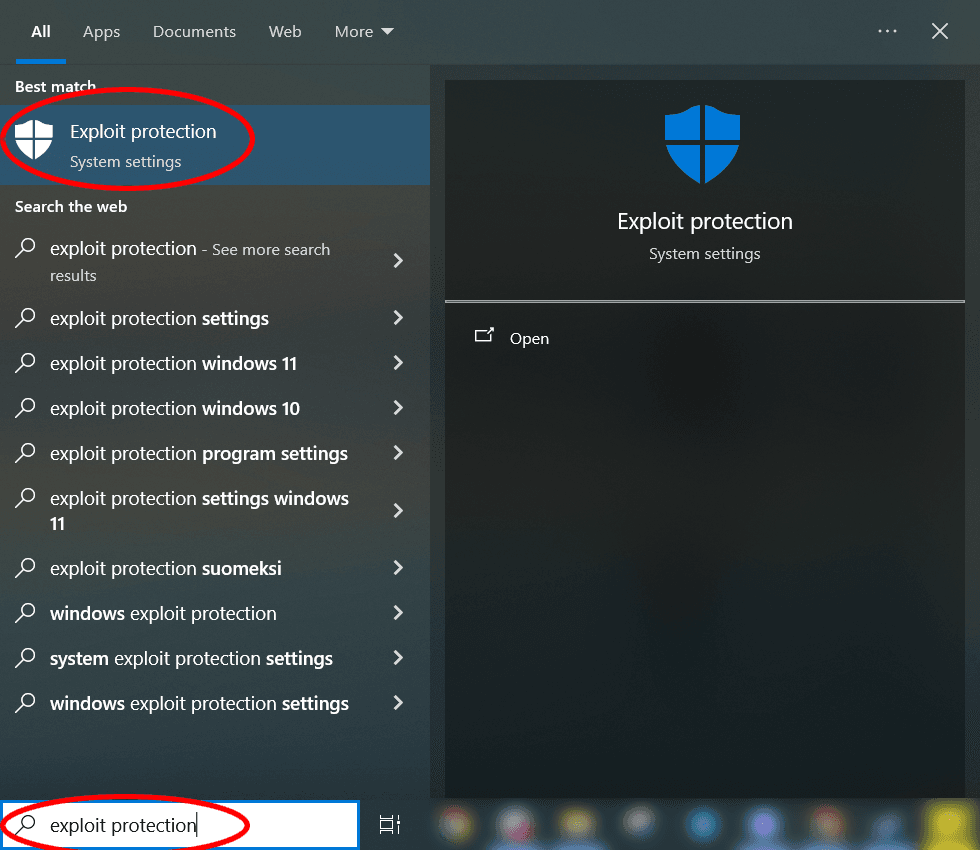
1. Open Windows Security Settings:
- Press the Windows Key and search for "Exploit Protection".
- Launch the system setting.
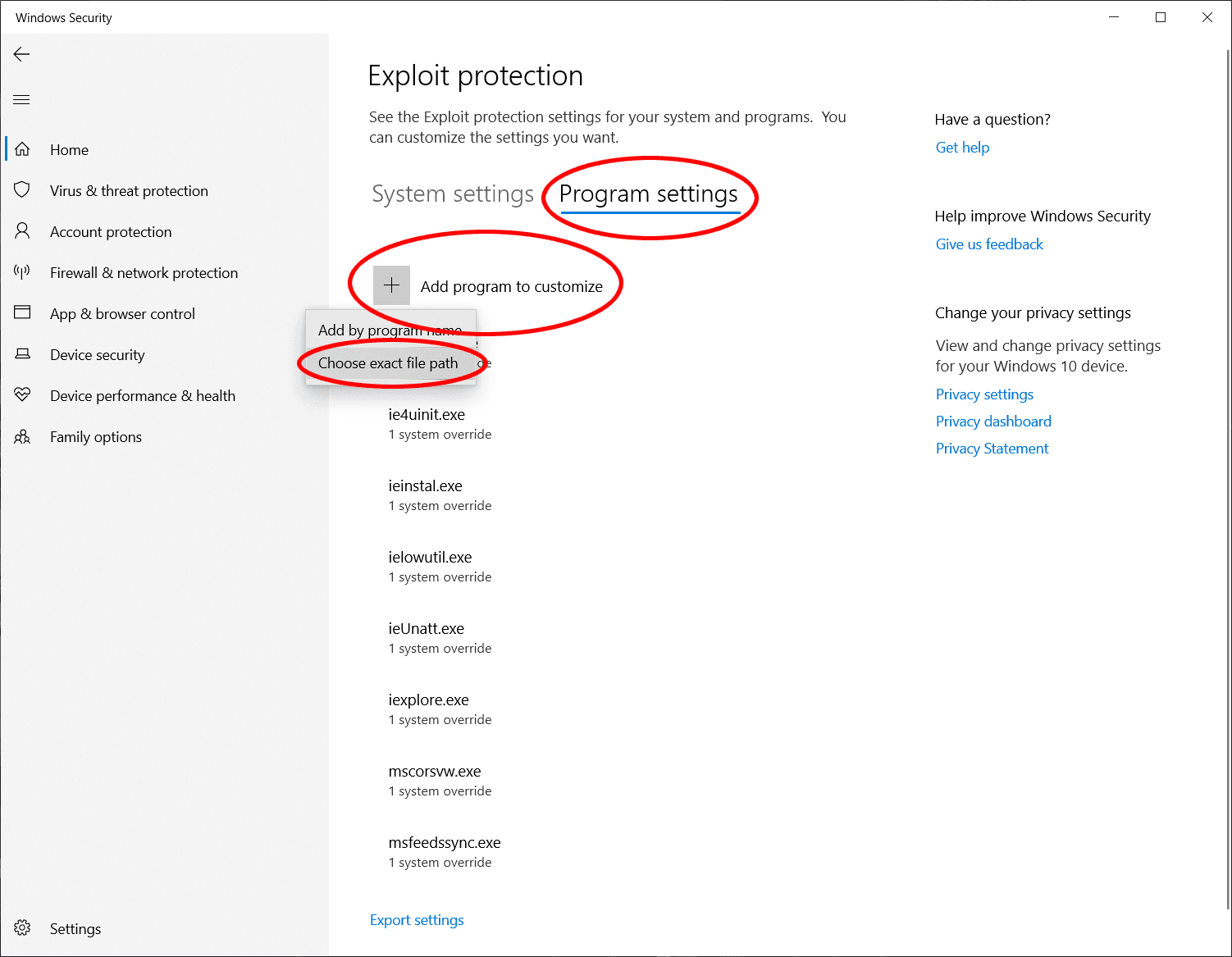
2. Access Program Customization:
- Select the Program settings tab (ignore the "System settings" tab).
- Click the + Add programs to customize button.
- Choose Choose exact file path.
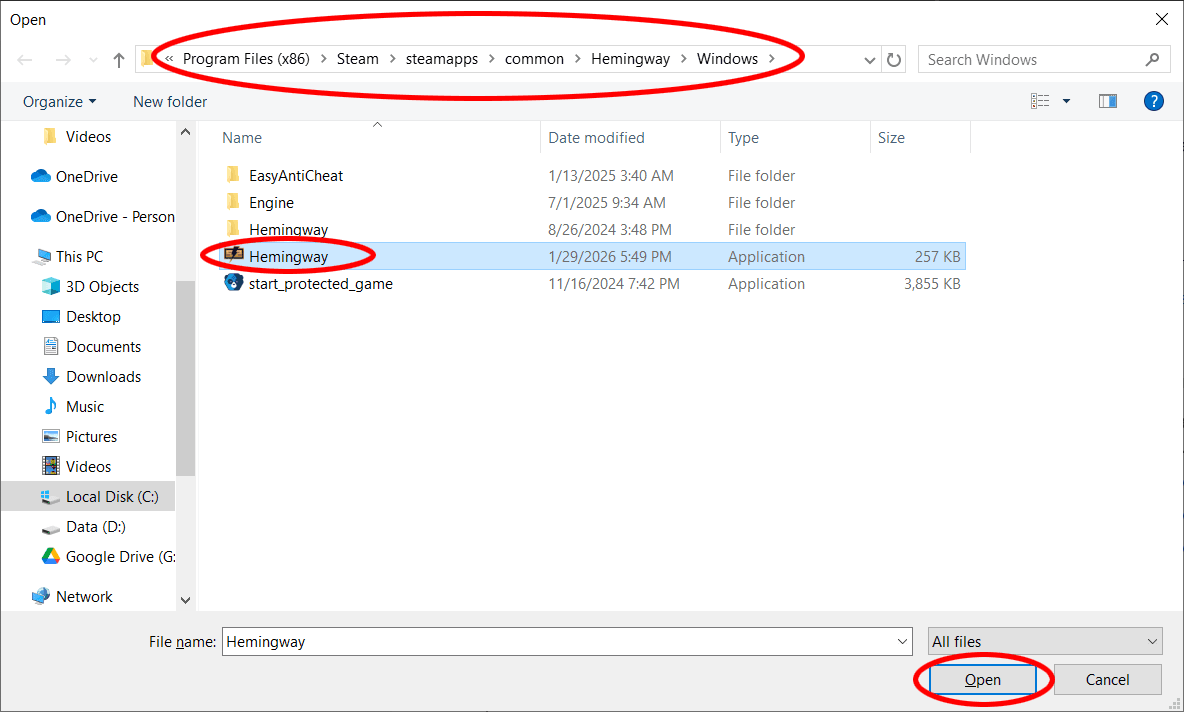
3. Target the Game Client:
- Navigate to your SMITE 2 installation directory.
- Note: The internal executable for SMITE 2 is named Hemingway.exe.
- Standard Steam path: C:\Program Files (x86)\Steam\steamapps\common\Hemingway\Windows\Hemingway.exe
- If you installed to a nonstandard Steam path, you can right-click the game title in your Steam Library, then go to Manage>Browse local files to find your installation directory.
- Standard Epic path: C:\Program Files\Epic Games\Smite2\Hemingway.exe
- If you installed to a nonstandard Epic path, you can right-click SMITE 2 in your Library, then click Manage, then under the Installation tab click the folder icon with a magnifying glass on it to find your installation directory.
- Select Hemingway.exe and click Open.
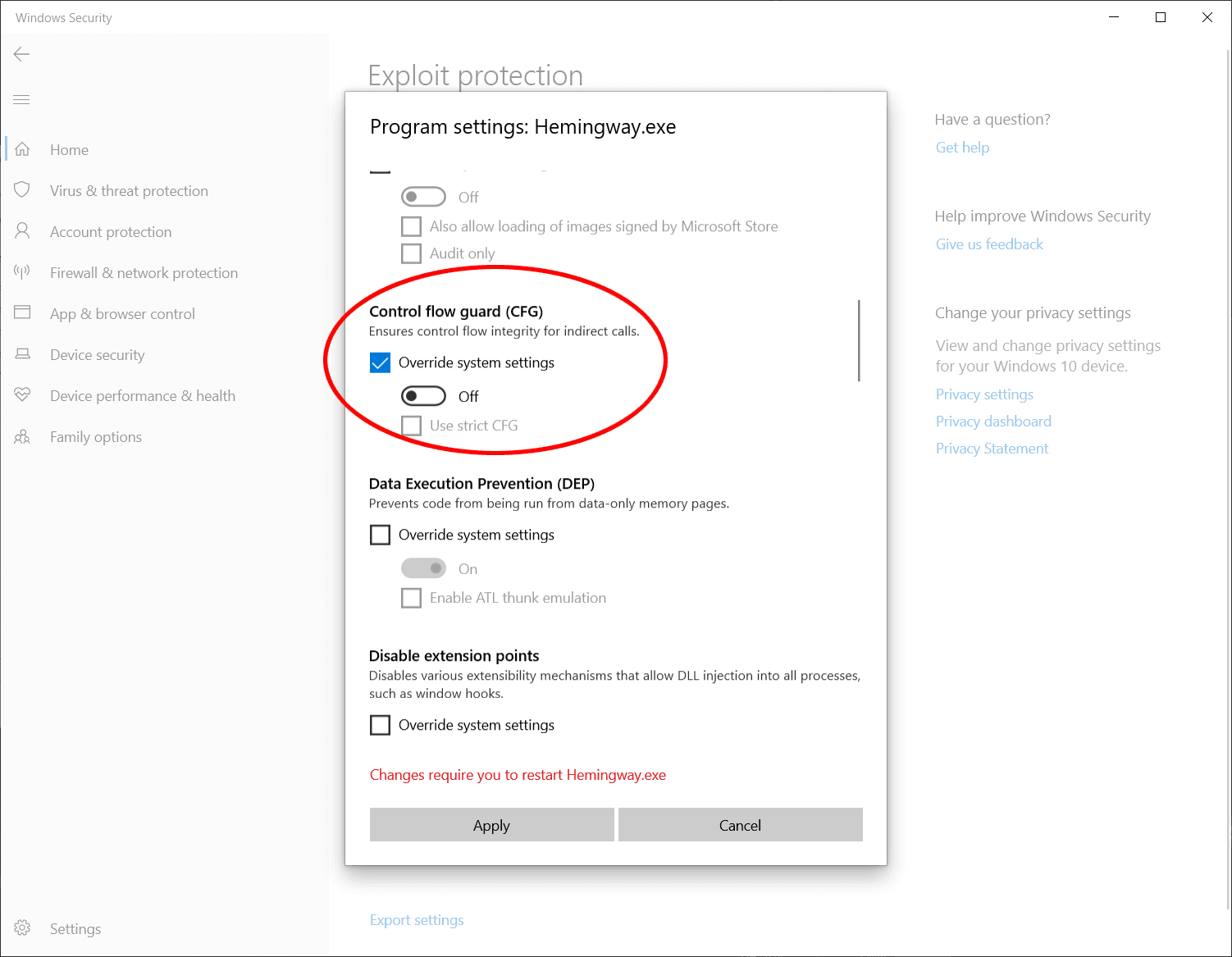
4. Apply the Exclusion:
- In the settings list that appears, scroll down to Control Flow Guard (CFG).
- Check Override system settings.
- Set the toggle switch to Off.
- Click Apply.
5. Restart:
- Relaunch SMITE 2. Windows will no longer impose CFG checks on the game process.
Conclusion
By preventing the operating system from interrupting the render thread, players should smoother, more consistent framerates that their hardware is capable of. Note that this will not necessarily address all hitches, but for some players (including several Ambassadors) this change has already resulted in a noted improvement. We encourage players experiencing OS-level hitching to apply this configuration.